 GiftCoves
Sharing a list
Private until you share it
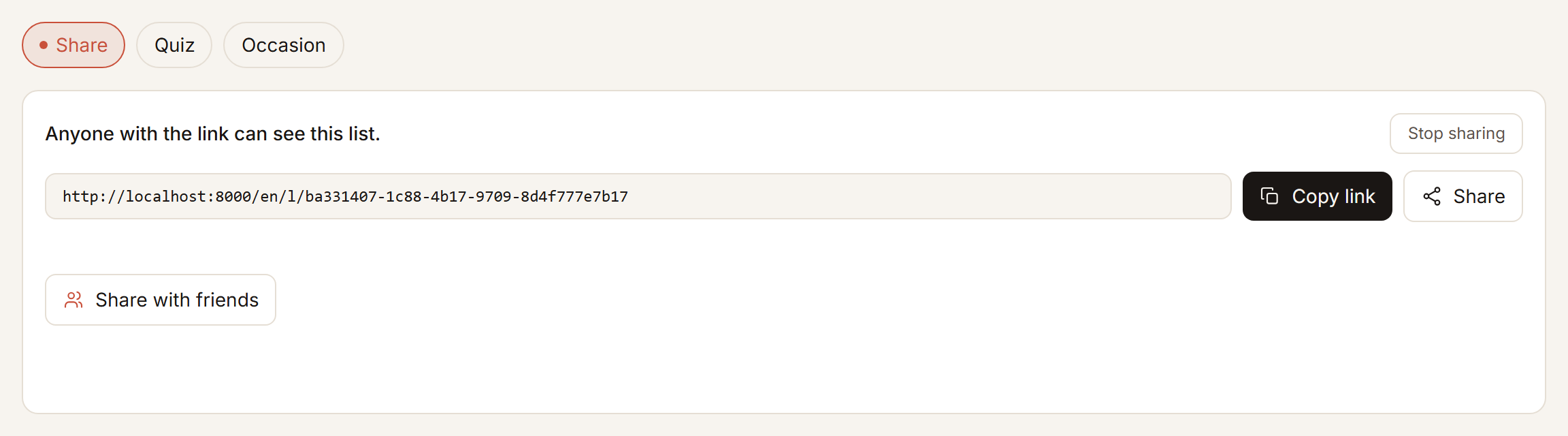
A new list is seen by you alone. Nothing shares it quietly: not an occasion, not a friend, not a quiz. You share it yourself, with “Share” on the list.
With a link
- Open your list and tap “Share”.
- Set it to “Share with a link” if it is still private.
- Tap “Copy link” and paste it into a message. Or tap “Copy message and link” for a ready-made message, or “Share” to pick WhatsApp, Telegram, email or another app.
Everyone with the link sees the list. “Stop sharing” makes every link you sent invalid; share again and you get a new one.
With friends by name
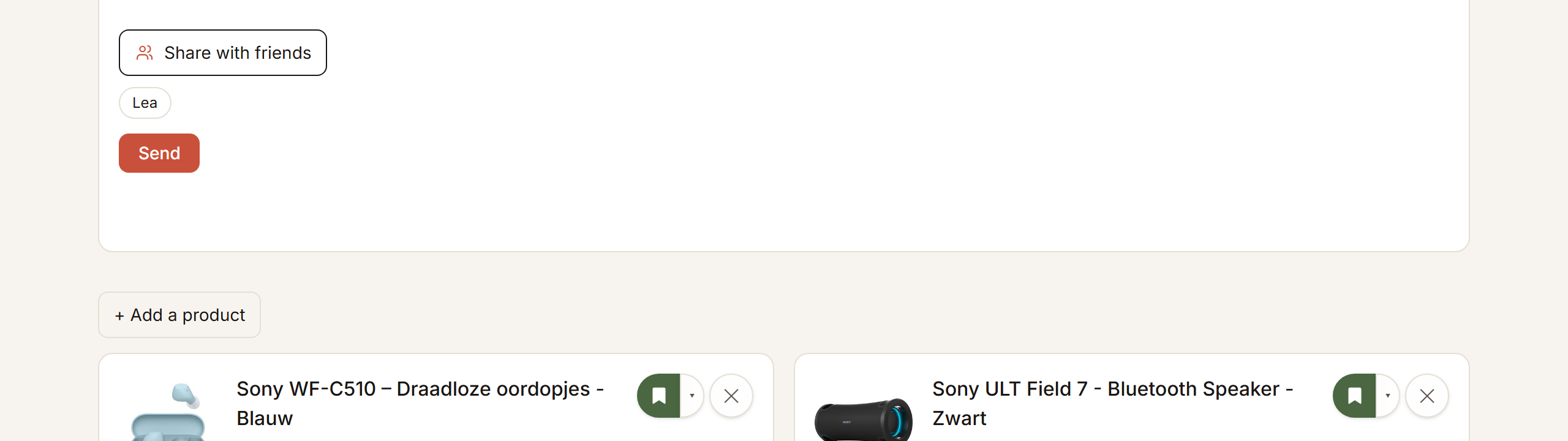
- Tap “Share”, then “Share with friends”.
- Pick the friends who may see it.
- Tap “Send”.
They get an email with the link, without the contents, and the list appears next to your name on their My people page. “Stop sharing with …” takes it off there; a link they already had keeps working until you stop sharing. How you become friends is under My people, birthdays and reminders.
Who may add
With “Anyone can add gifts” on, whoever has the link puts something on the list straight away. With it off, suggestions come to you and you decide. Hand-written items always wait for you.
Who sees what has been bought
On a wish list you do not see what has been reserved. That is off by default and you switch it on per list with “Show me what has been claimed”. On a gift list it is on, because you are giving too. Names of who is buying what are hidden by default; switch them on and it applies to new reservations only.
Delivery address
On your own wish list you can keep a delivery address. It is stored encrypted and shown only to someone who has reserved something. If they let the reservation go, it disappears again.