 GiftCoves
What goes on a list
The bookmark
On every product card, in search and in every Cove. One tap saves to the list you last saved to, otherwise to your default list. Once saved, the bookmark is filled and reads Saved, and another tap opens the panel: tick another list, or untick one to take it off. On a product page it is the same button with the word Save next to it, and on a Cove too.
Adding from the list itself
- Open your list under My Coves.
- Tap “+ Add a product”.
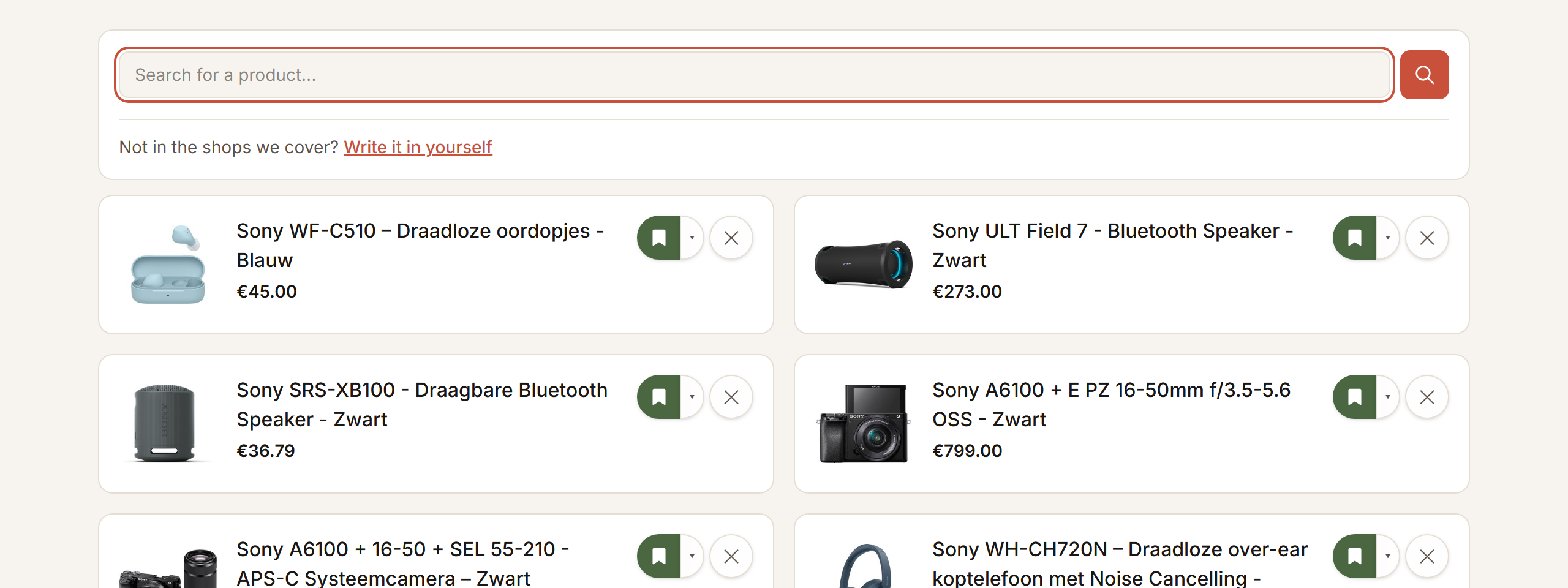
- Type what you are looking for and press Enter, or tap the scan icon and point your camera at the barcode.
- Tap the product in the results. It is on your list straight away.
Something that is not on this site
- Tap “+ Add a product”.
- Under the search field, choose “Add an offline item”.
- Fill in what it is. A link, a price and a note such as “size M, in blue” may go with it.
- Save it.
Your own items can be changed later: tap “⋯” on the item, then “Edit”. Catalogue products cannot: their title and price come from the shop.
Copying, not moving
On your own list, “Copy to another list” is under “⋯” on each item. On someone else’s shared list it is “Save”. The original stays; the note and the price come along, whoever is buying it does not.
When the price drops
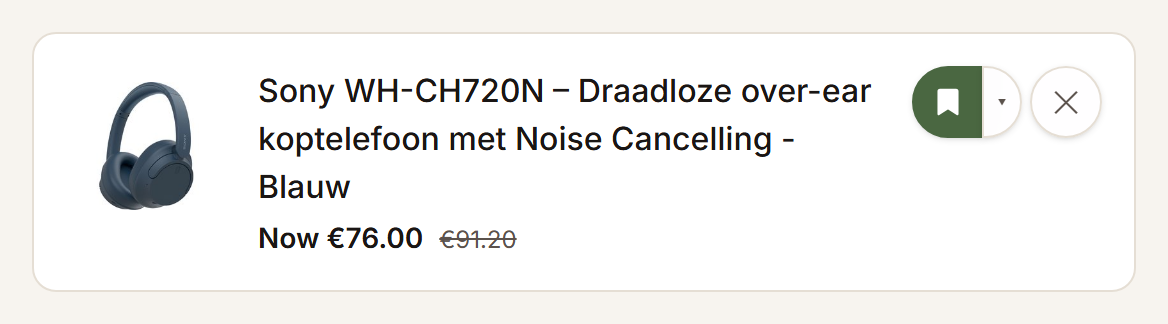
A saved product remembers the price at that moment. When it drops, the card shows the new price with the old one struck through. There is nothing to set up. More under Keeping an eye on prices and stock. Want an email when something on the list gets cheaper? Tap Follow at the top of the list; how big a drop counts is under Settings.
Removing
Tap “⋯” on the item and choose “Remove from this list”. Only whoever manages the list can remove an item. The newest is at the top.