 GiftCoves
Saving and making a list
You do not have to make a list first. Saving offers to create one, and the home page has a button that makes one in one step.
Find something you want to keep
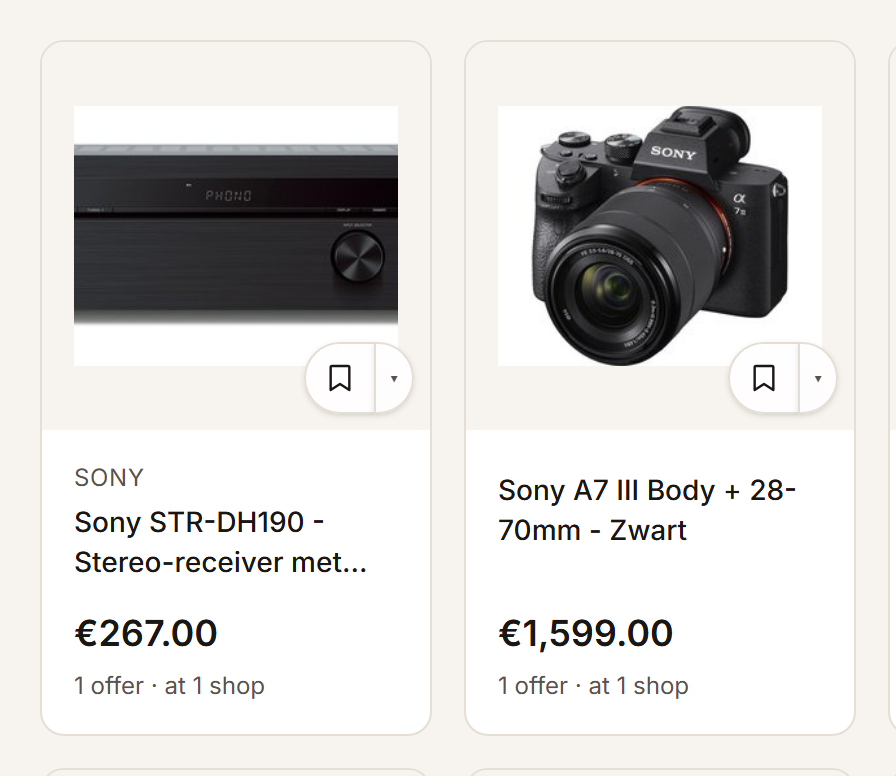
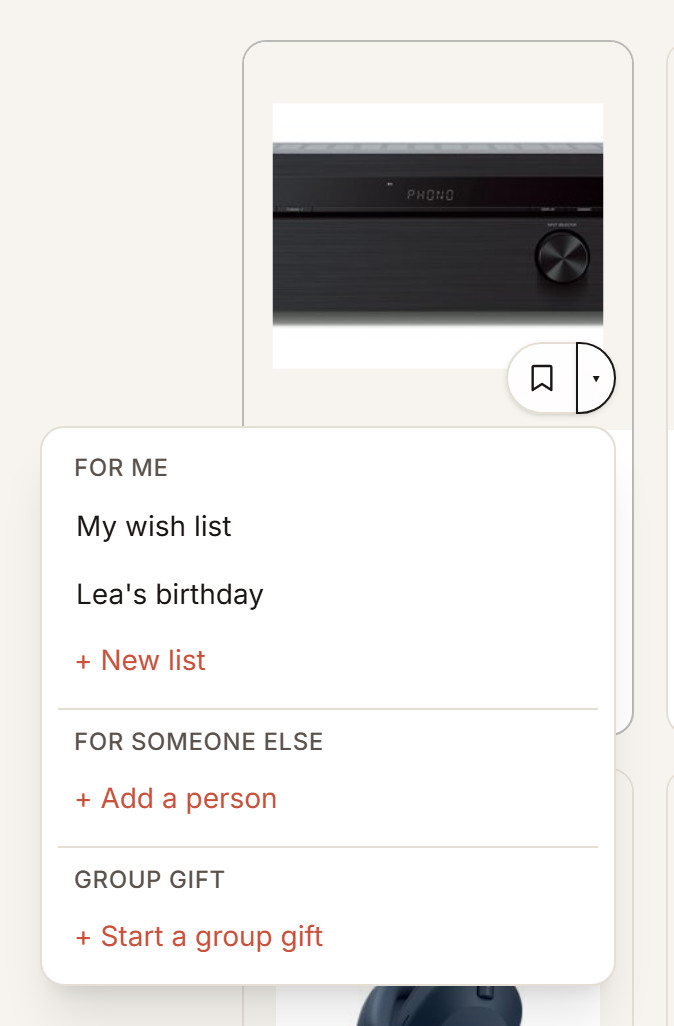
Save it and pick a list
Tap the bookmark and it is on your list. Tap again to pick another list or start a new one. The panel puts the list one tap uses on top, and ticks every list it is on.
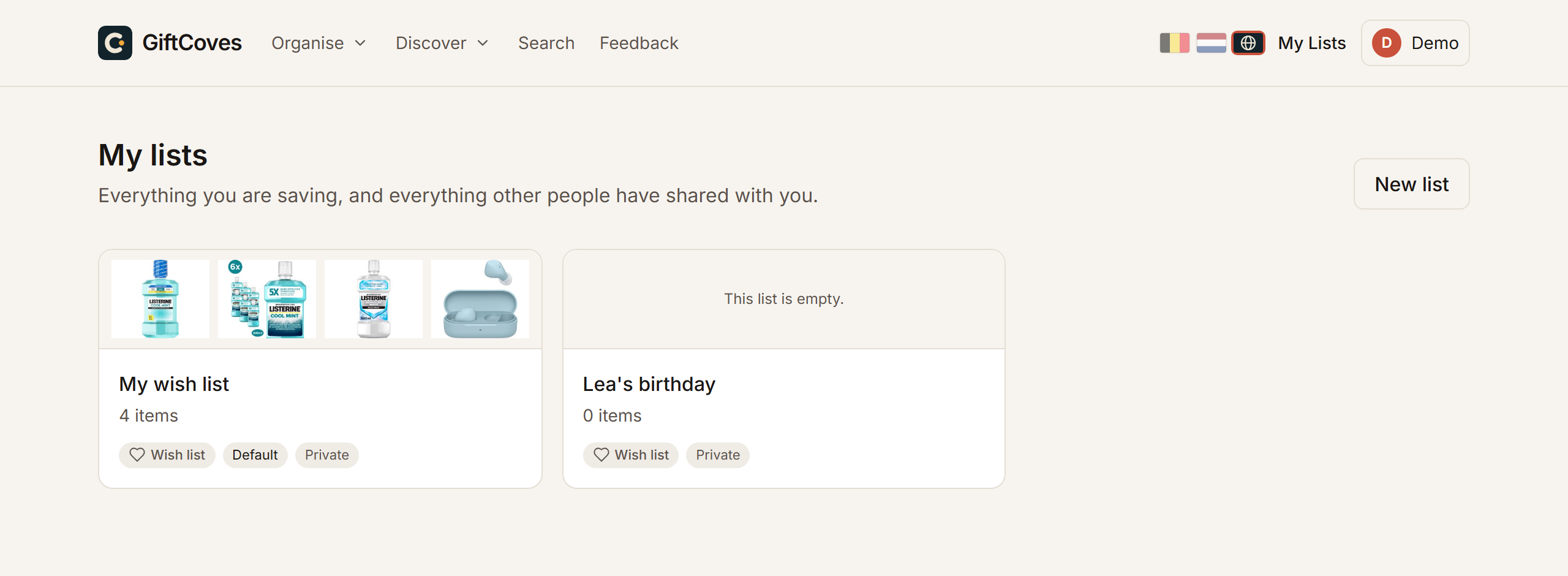
Open your lists
Everything you saved is under My Coves, on one page: Wish lists, For others, Give together and Saved, each with its count. Each list shows what is on it, whether it is private and who it is for. When a price drops, the card says so.
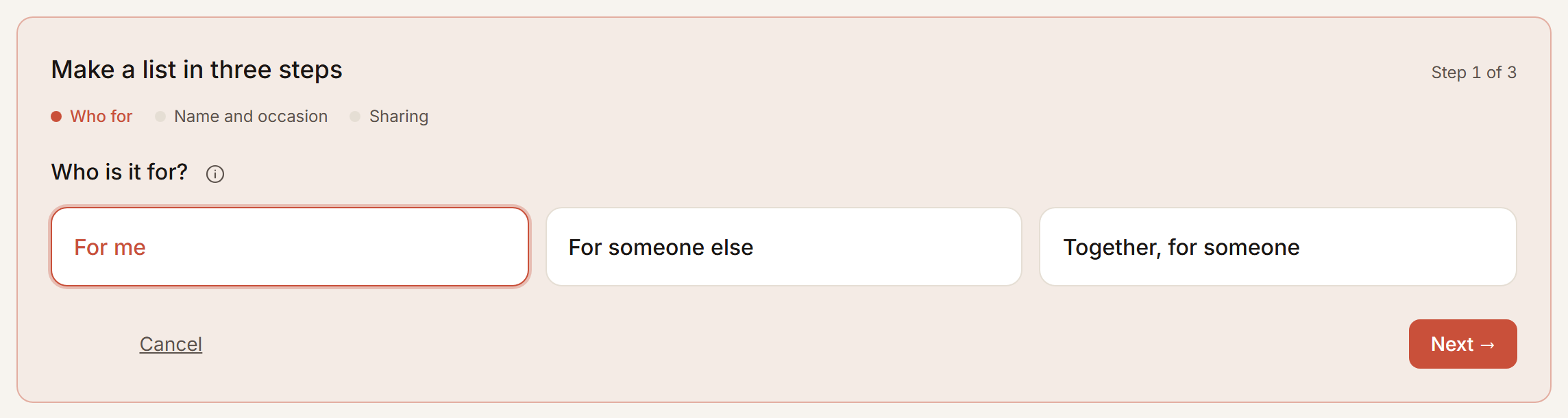
Making a list in one step
- Tap “Make a Cove” under My Coves or on the home page.
- Choose who it is for: “For me”, “For someone else” or “Together, for someone”. For someone else, type their name or tap somebody you already have.
- Tap “Make a Cove” at the bottom. The name is filled in for you; change it first if you like.
The list opens with the box to add something already open: paste a link or search. The occasion, sharing and asking for ideas are on the list itself: Share, and Settings under More.
Or skip this: while saving, tap the bookmark and choose a new list there. What you were saving goes straight onto it.
One choice is then fixed: who it is for. Everything else you can still change. What the three kinds can do is under Wish list, gift list or give together.
You do not need to be signed in to start
This works without an account: the button signs you in and the list is there. What you filled in is kept for a day, so stepping away is fine.